
Introduction
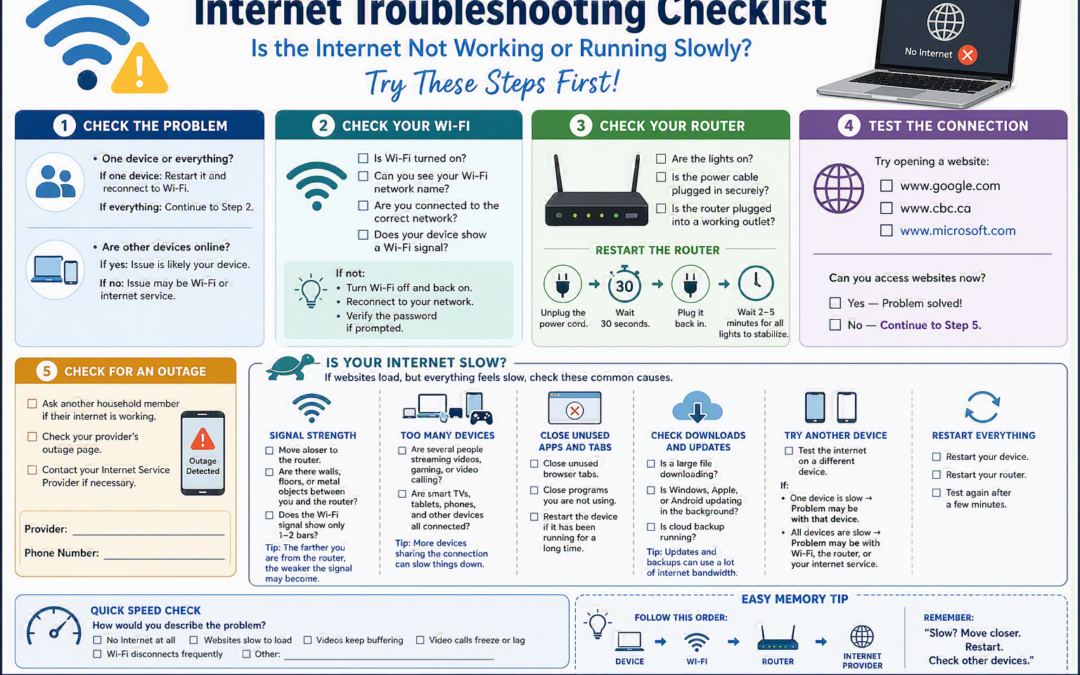
Few technology problems are more frustrating than an internet connection that suddenly stops working or slows to a crawl. Whether you’re trying to check email, join a video call, watch a favourite show, or browse the web, internet issues can bring everything to a standstill.
The good news? Many internet problems can be solved with a few simple checks before calling for technical support.
At Tech Tutors, we encourage people to build digital confidence by learning some basic troubleshooting skills. This easy-to-follow checklist can help you identify whether the problem is with your device, your Wi‑Fi connection, your router, or your internet service provider.
Step 1: Determine the Scope of the Problem
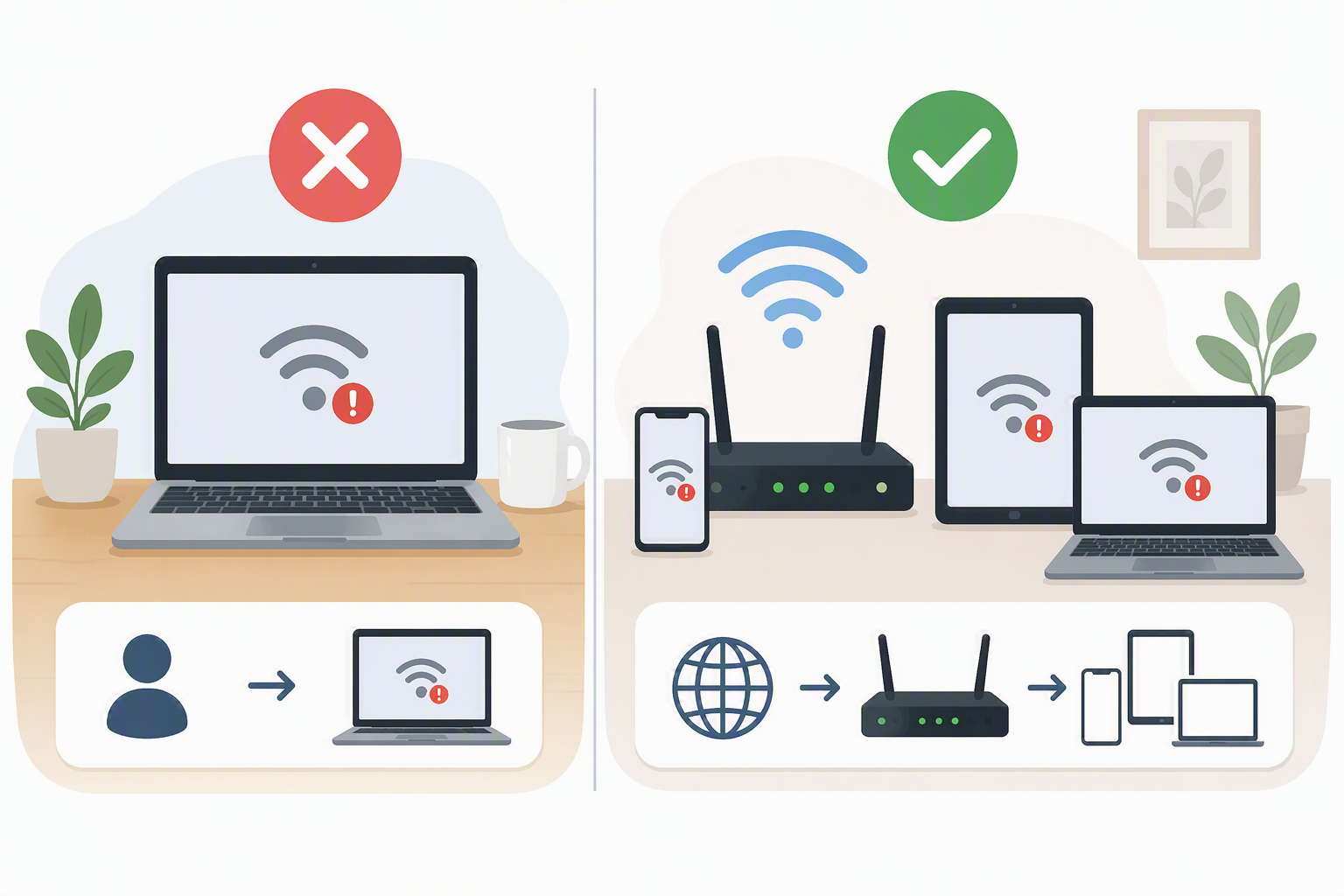
Before making any changes, ask yourself:
- Is the problem happening on only one device?
- Are other devices in the home working normally?
If only one device is affected, the issue is often with that device rather than the internet connection itself. Try restarting the device and reconnecting to Wi‑Fi.
If no devices can get online, the problem is more likely related to your router, Wi‑Fi network, or internet service.
Step 2: Check Your Wi‑Fi Connection
Sometimes the solution is surprisingly simple.
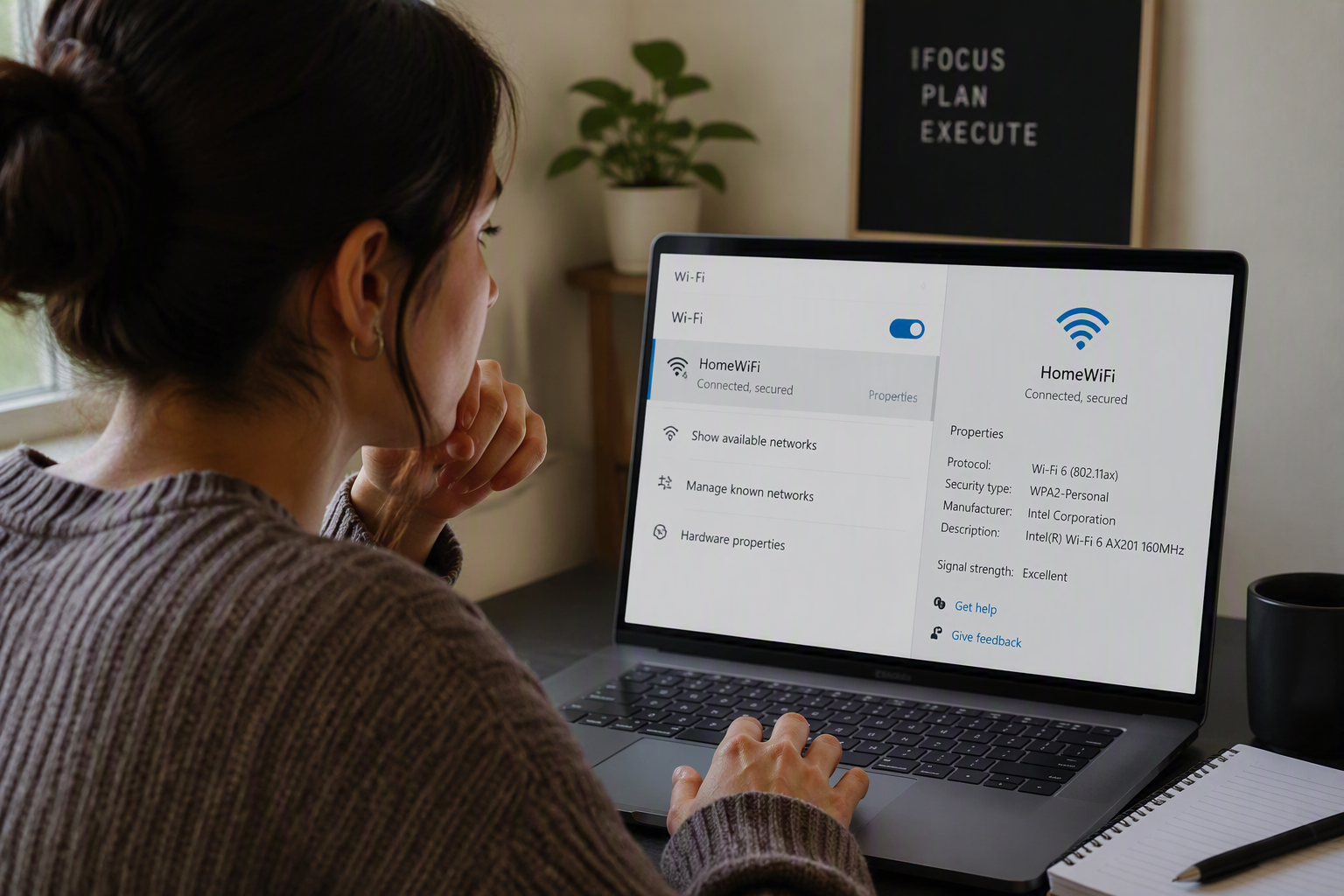
Verify that:
✅ Wi‑Fi is turned on
✅ Your Wi‑Fi network name appears in the list of available networks
✅ You’re connected to the correct network
✅ Your device shows a Wi‑Fi signal
If something doesn’t look right:
- Turn Wi‑Fi off and back on.
- Reconnect to your network.
- Re-enter your Wi‑Fi password if requested.
A quick reconnect can often solve temporary connection issues.
Step 3: Check Your Router
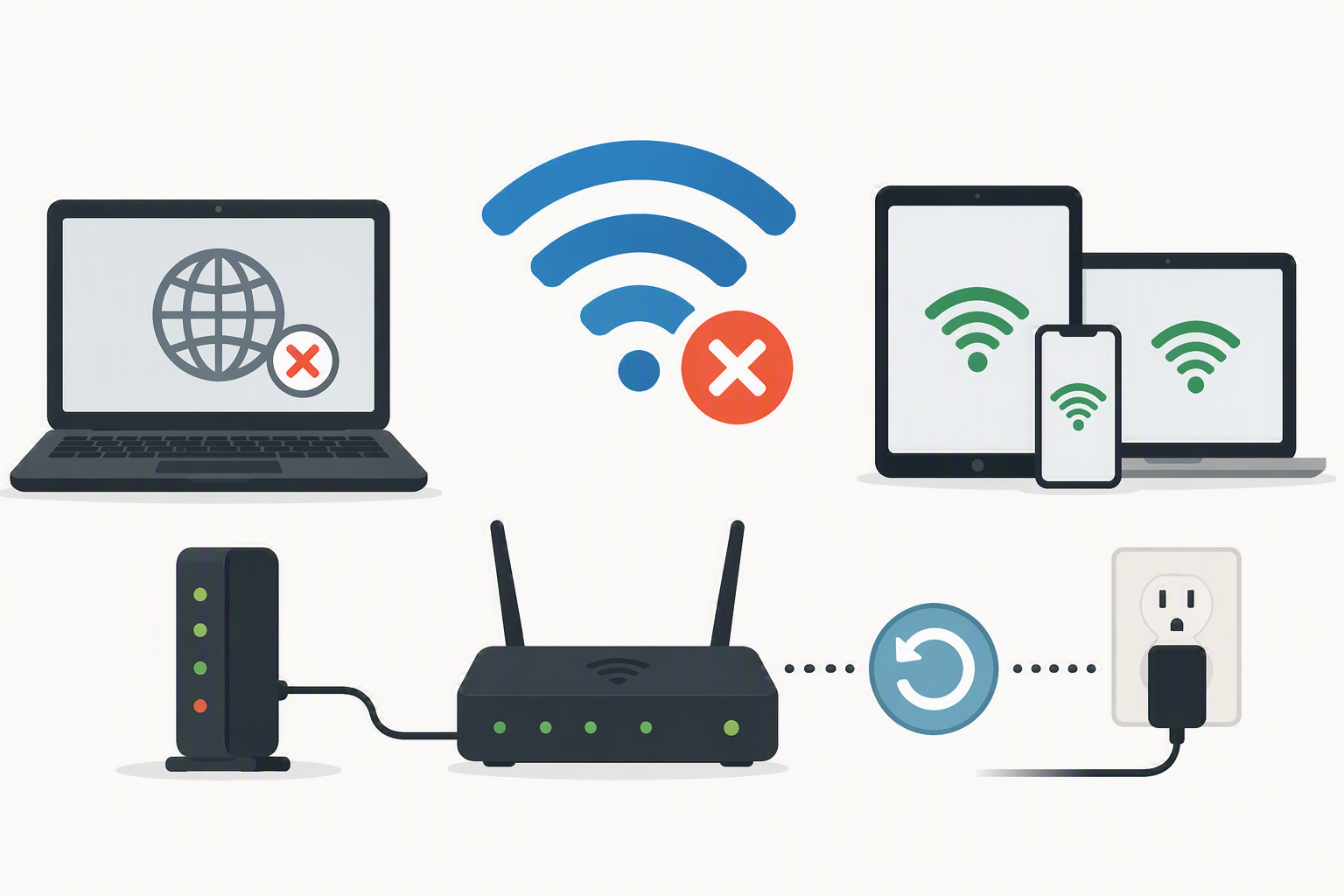
Your router is the heart of your home’s internet connection. If it’s having trouble, all connected devices can be affected.
Take a moment to check:
✅ Are the lights on?
✅ Is the power cable firmly connected?
✅ Is the router plugged into a working electrical outlet?
Try the Classic Restart
Many internet issues can be resolved by restarting the router.
- Unplug the router’s power cord.
- Wait 30 seconds.
- Plug it back in.
- Allow 2–5 minutes for the router to fully restart.
Patience is key—routers often need a few minutes before reconnecting to the internet.
Step 4: Test Your Connection
Once the router has restarted, try opening a few websites:
- www.google.com
- www.cbc.ca
- www.microsoft.com
If websites load successfully, congratulations—the problem is likely resolved.
If they still won’t load, continue to the next step.
Step 5: Check for an Internet Outage
Sometimes the problem isn’t inside your home at all.
Ask:
✅ Are neighbours or household members experiencing the same issue?
✅ Has your provider reported a service outage?
✅ Have you contacted your Internet Service Provider for updates?
If there is a widespread outage, your provider can often give an estimated restoration time and additional information.
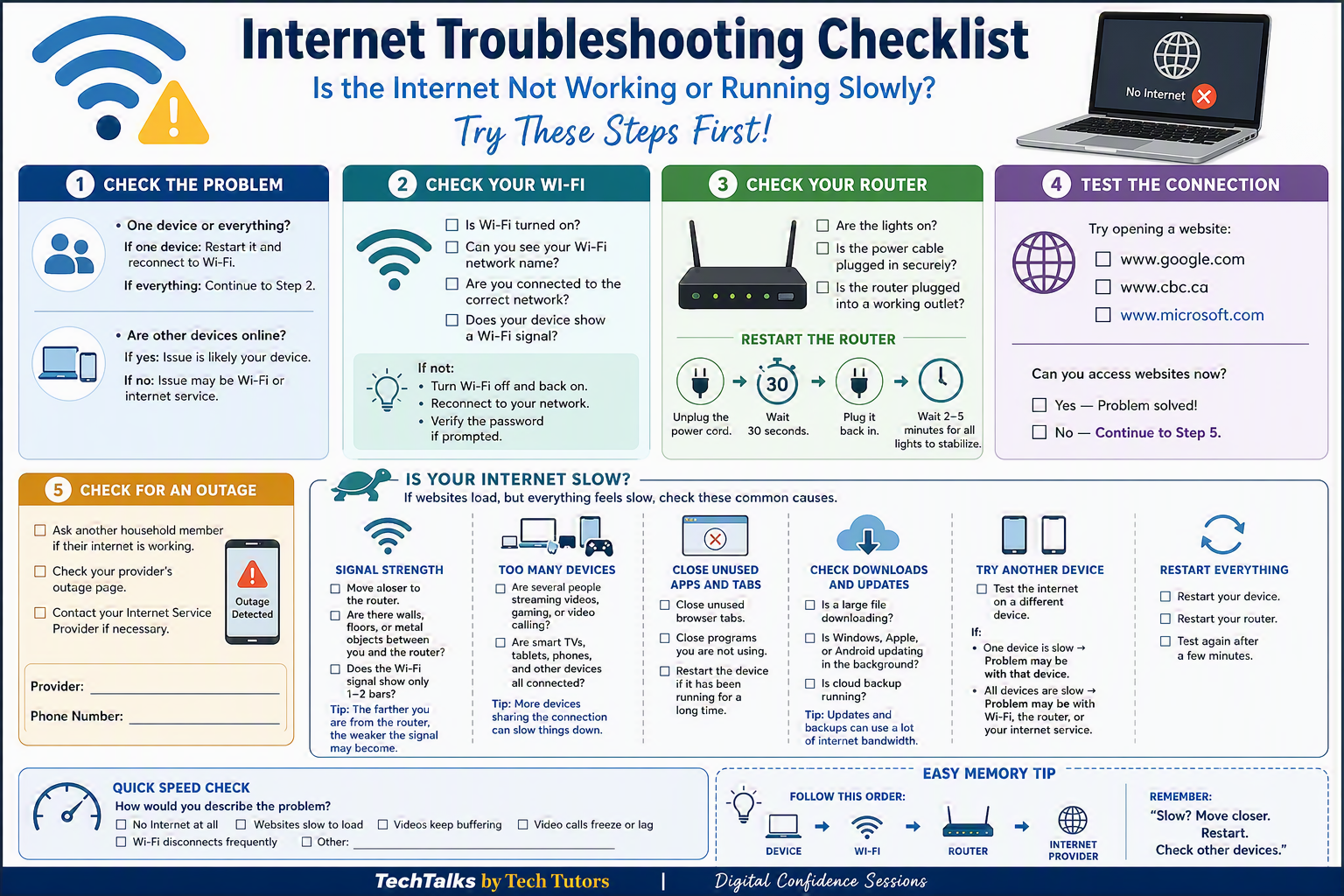
What If the Internet Works but Feels Slow?
A slow connection can be just as frustrating as no connection. Here are some common causes to check.
Signal Strength Matters
Wi‑Fi signals weaken over distance and can be blocked by:
- Walls
- Floors
- Metal objects
- Large appliances
- Old Extenders
Try moving closer to the router and see if the connection improves.
A one- or two-bar Wi‑Fi signal often leads to slower speeds and buffering.
Too Many Devices Sharing the Connection
Modern households often have:
- Smartphones
- Tablets
- Smart TVs
- Gaming consoles
- Computers
- Smart home devices
When many devices are streaming, gaming, or video calling simultaneously, internet performance can slow down for everyone.
Close Unused Apps and Browser Tabs
Sometimes the device itself is the bottleneck.
Try:
✅ Closing unused browser tabs
✅ Exiting programs you’re not actively using
✅ Restarting the device
A restart clears temporary issues and frees up system resources.
Check for Downloads and Software Updates
Large background activities can consume significant bandwidth.
Look for:
- Windows updates
- Apple updates
- Android updates
- Cloud backups
- File downloads
These processes can temporarily make internet speeds feel much slower than normal.
Test Another Device
This is one of the best troubleshooting techniques.
If only one device is slow:
- The issue is probably with that device.
If all devices are slow:
- The issue is more likely related to the Wi‑Fi signal, router, or internet service.
This simple comparison helps narrow down the cause quickly.
Restart Everything
When in doubt:
✅ Restart your device
✅ Restart your router
✅ Wait a few minutes
✅ Test again
A fresh start often resolves temporary glitches that build up over time.
Quick Internet Problem Checklist
How would you describe your issue?
☐ No internet at all
☐ Websites load slowly
☐ Videos keep buffering
☐ Video calls freeze or lag
☐ Wi‑Fi disconnects frequently
☐ Other: _________________________
Identifying the symptom helps determine the most likely cause and solution. This can also help if you are trying to troubleshoot with a technician as well.
Recent Comments